
"Scholarships are not just financial aid; they are investments in the future potential of brilliant minds."
Google Antigravity is an agent-driven IDE that pairs powerful models like Gemini 3 with an agent-first workflow. Instead of manually configuring tools, terminals, and browser sessions, you collaborate with an AI agent that can plan work as tasks, run commands, edit code, and even interact with your browser to test and document your app.
In this tutorial, I’ll walk you through how to build a working Personal Finance Risk Dashboard using Google Antigravity. You’ll see how to:
Install and configure Antigravity with agent-assisted development
Prompt the agent to set up a Next.js, Tailwind, and shadcn/ui application
Review and refine the autogenerated implementation plan
Let the agent test your app in the browser using the Antigravity extension
Iterate on features like dark/light mode and debugging with computer use
By the end, you’ll have a multi-page dashboard that visualizes risk levels for Savings, Bonds, Index Funds, and Crypto, complete with interactive controls and a modern fintech UI, built through a single prompt. I also recommend checking out our guide to the Gemini 3 API and Gemini 3 Flash tutorial.
Disclaimer: This tutorial is for educational purposes only and does not constitute financial advice; always conduct your own research or consult a qualified financial professional before making investment decisions.
What is Google Antigravity?
Google Antigravity is an agent-first development platform that turns your IDE into a mission control for AI agents. At its core, it gives agents synchronized control over your editor, terminal, and browser, so they can plan work, change code, run commands, and verify behavior end-to-end from a single place.
Instead of manually wiring together scripts and tools, you describe the outcome you want and let Antigravity’s agents handle the heavy lifting. They can:
Turn a high-level request into a task-level plan or implementation checklist
Run terminal commands to create projects, install dependencies, and start dev servers
Edit code across your workspace, from layout files to shared components
Use a browser extension to open your app, click through flows, and capture screenshots or walkthrough recordings as Artifacts.
Antigravity is built around Google’s Gemini 3 models, but also supports other providers like Claude Sonnet 4.5 and GPT-OSS. It comes with two main surfaces, i.e., an Editor view that feels like an IDE (if you ever used Cursor or VS Code), and an Agent Manager view that acts as mission control for longer-running, multi-workspace tasks. Together, they make it easier to work at a task-oriented level while the agents handle the implementation details.
Google Antigravity Demo: Building a Finance Risk Dashboard
In this section, we’ll build a personal finance risk dashboard with Google Antigravity. The agent will turn a single natural-language prompt into a Next.js project that models different investment products and their risk profiles.
By the end, you’ll have:
A multi-page dashboard for Savings, Bonds, Index Funds, and Crypto
Interactive sliders for time horizon
A polished dark/light mode UI
Knowledge of how Antigravity agents plan, implement, test, and iterate on a full feature
Step 1: Installing Google Antigravity
Let's start by downloading Google Antigravity from the official website and selecting the installer according to your machine specifications.
Click Download for MacOS (or your OS), and it will take you to a platform selection screen to choose the appropriate binary for your machine and complete the installation.
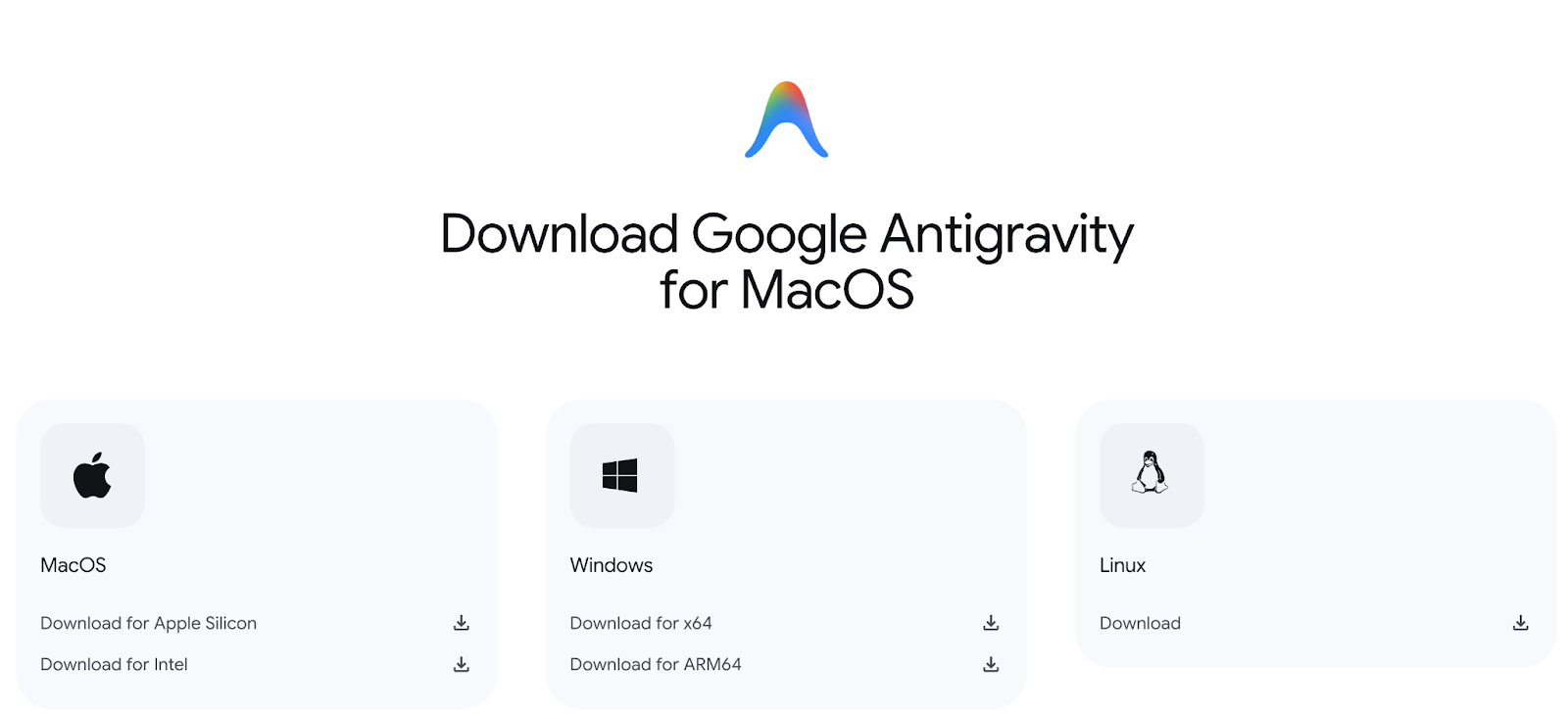
For this tutorial, I ran it on a Mac with Apple Silicon, but the interface won’t be any different for any machine.
Once downloaded, set up Google Antigravity just as you would any other application and launch it.
Unlock 50,000+ Verified Scholarships
Get personalized matches, deadline tracking, and AI-powered essay assistance.
Start Free Trial